
SLURM - Documentation
Presentation of computing resources
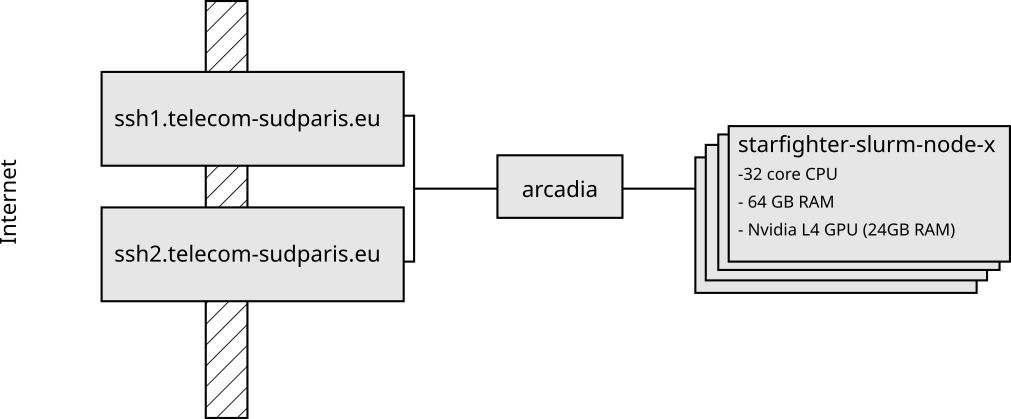
As part of CSC5001, you will use the starfighter cluster at Télécom SudParis. This cluster is composed of 12 compute nodes equipped with:
- An Intel Xeon Silver 4514 Y CPU (16 cores, 32 threads)
- 48 GB of RAM
- An Nvidia L4 GPU (24 GB of RAM)
To reserve a (set of) compute node(s), you need to run a Slurm command on Arcadia. To connect to arcadia from the internet,
you may need to set up ssh proxy jumps.
Submitting Slurm jobs
First, connect to arcadia-slurm-controller where you can request compute nodes, eg:
[my_laptop] $ ssh -X arcadia-slurm-controller
[arcadia] $ srun --x11 --account=csc_5001 --partition=starfighter --qos=normal --time=02:00:00 --cpus-per-task=16 --mem=32G --gres=gpu:1 --pty bash
[starfighter-slurm-node-01-1] $
Requesting nodes |
|
| Request one node in interactive mode | srun --x11 --account=csc_5001 --partition=starfighter --qos=normal --time=02:00:00 --cpus-per-task=16 --mem=32G --gres=gpu:1 --pty bash |
| Request one node in interactive mode (sharing with other students) | srun --x11 --account=csc_5001 --partition=starfighter --qos=normal --time=02:00:00 --cpus-per-task=16 --mem=32G --oversubscribe --pty bash |
| Running a command on one node | srun --x11 --account=csc_5001 --partition=starfighter --qos=normal --time=02:00:00 --cpus-per-task=16 --mem=32G --gres=gpu:1 command |
| Running a command on 4 nodes | srun --x11 --account=csc_5001 --partition=starfighter --qos=normal --time=02:00:00 -N 4 --cpus-per-task=16 --mem=32G --gres=gpu:1 command |