Table of Contents
Web service invocation with Flowable java service task!!!!
We will see how to invoke SOAP Web service with Floawble java service task. You should practice the previous tutorial to be clear with the java service task. We use the NumberToWord operation from NumberConvertion SOAP Web service to translate numbers to words (http://www.dataaccess.com/webservicesserver/NumberConversion.wso)
Create an external Java class as a jar file
- In Eclipse, create a new Maven Project.
- Check Create a simple project→Next
- Add Group Id and Artifact Id: org.flowable → Finish
- In your project, edit the file pom.xml by adding:
<project xmlns="http://maven.apache.org/POM/4.0.0" xmlns:xsi="http://www.w3.org/2001/XMLSchema-instance" xsi:schemaLocation="http://maven.apache.org/POM/4.0.0 https://maven.apache.org/xsd/maven-4.0.0.xsd">
  <modelVersion>4.0.0</modelVersion>
  <groupId>org.flowable</groupId>
  <artifactId>org.flowable</artifactId>
  <version>0.0.1-SNAPSHOT</version>
   <dependencies>
   <dependency>
    <groupId>org.flowable</groupId>
    <artifactId>flowable-engine</artifactId>
    <version>6.7.2</version>
    <scope>provided</scope>
</dependency>

<dependency>
    <groupId>com.sun.xml.messaging.saaj</groupId>
    <artifactId>saaj-impl</artifactId>
    <version>3.0.0</version>
</dependency>
<dependency>
    <groupId>jakarta.xml.soap</groupId>
    <artifactId>jakarta.xml.soap-api</artifactId>
    <version>3.0.2</version>
</dependency>
<dependency>
    <groupId>com.sun.activation</groupId>
    <artifactId>jakarta.activation</artifactId>
    <version>2.0.1</version>
</dependency>
<dependency>
    <groupId>org.jvnet.staxex</groupId>
    <artifactId>stax-ex</artifactId>
    <version>2.1.0</version>
</dependency>
            </dependencies>

  <build>
    <plugins>
      <plugin>
        <groupId>org.apache.maven.plugins</groupId>
        <artifactId>maven-shade-plugin</artifactId>
        <version>3.5.2</version>
        <executions>
          <execution>
            <phase>package</phase>
            <goals>
              <goal>shade</goal>
            </goals>
            <configuration>
              <createDependencyReducedPom>false</createDependencyReducedPom>
              <artifactSet>
                <includes>
                  <include>jakarta.xml.soap:jakarta.xml.soap-api</include>
                  <include>com.sun.xml.messaging.saaj:saaj-impl</include>
                  <include>com.sun.activation:jakarta.activation</include>
                  <include>org.jvnet.staxex:stax-ex</include>
                </includes>
              </artifactSet>
            </configuration>
          </execution>
        </executions>
      </plugin>
    </plugins>
  </build>
</project>
- Create a package org.flowable.
- In the package org.flowable, create a class MySOAPDelegate with the following code:
package org.flowable;

import org.flowable.engine.delegate.DelegateExecution;
import org.flowable.engine.delegate.JavaDelegate;
import org.w3c.dom.NodeList;

import jakarta.xml.soap.MessageFactory;
import jakarta.xml.soap.SOAPBody;
import jakarta.xml.soap.SOAPConnection;
import jakarta.xml.soap.SOAPConnectionFactory;
import jakarta.xml.soap.SOAPElement;
import jakarta.xml.soap.SOAPEnvelope;
import jakarta.xml.soap.SOAPException;
import jakarta.xml.soap.SOAPMessage;
import jakarta.xml.soap.SOAPPart;

public class MySOAPDelegate implements JavaDelegate {

	public static boolean isNumeric(String strNum) {
		if (strNum == null) {
			return false;
		}
		try {
			Double.parseDouble(strNum);
		} catch (NumberFormatException nfe) {
			return false;
		}
		return true;
	}

	public void execute(DelegateExecution execution) {

		String var = (String) execution.getVariable("input");
		String result = "";

		if (!isNumeric(var)) {
			result = "Invalid Number";
		} else {
			MessageFactory messageFactory;
			try {
				messageFactory = MessageFactory.newInstance();

				SOAPMessage soapMessage = messageFactory.createMessage();
				SOAPPart soapPart = soapMessage.getSOAPPart();

				String serverURI = "http://www.dataaccess.com/webservicesserver/";

				// SOAP Envelope
				SOAPEnvelope envelope = soapPart.getEnvelope();
				envelope.addNamespaceDeclaration("ex", serverURI);

				// SOAP Body
				SOAPBody soapBody = envelope.getBody();
				SOAPElement soapBodyElem = soapBody.addChildElement("NumberToWords", "ex");
				SOAPElement soapBodyElem1 = soapBodyElem.addChildElement("ubiNum", "ex");
				soapBodyElem1.addTextNode(var);

				soapMessage.saveChanges();

				// Create SOAP Connection
				SOAPConnectionFactory soapConnectionFactory = SOAPConnectionFactory.newInstance();
				SOAPConnection soapConnection = soapConnectionFactory.createConnection();

				// Send SOAP Message to SOAP Server
				String url = "https://www.dataaccess.com/webservicesserver/NumberConversion.wso";
				SOAPMessage soapResponse = soapConnection.call(soapMessage, url);

				NodeList nodeList = soapResponse.getSOAPBody().getElementsByTagName("m:NumberToWordsResult");
				String test = soapResponse.getSOAPBody().getTextContent();
				if (nodeList.getLength() > 0)
					result = nodeList.item(0).getTextContent();
				else
					result = "Invalid Number";

				soapConnection.close();
			} catch (SOAPException e) {
				// TODO Auto-generated catch block
				e.printStackTrace();
			}
		}

		execution.setVariable("input", result);

	}
}
- Right click on your project and select Run As→Maven Install to build a jar file.
- Copy a jar file in the folder target to TOMCAT_HOME\webapps\flowable-ui\WEB-INF\lib
- Restart your tomcat.
Design the "Get Number to Word" process model
- In Activiti, login as admin with admin/test
- Go to Modeler App→Processes→Create Process.
- Enter new model Model name: Get Number to Word, Model key:get_number_to_word. Click Create new model.
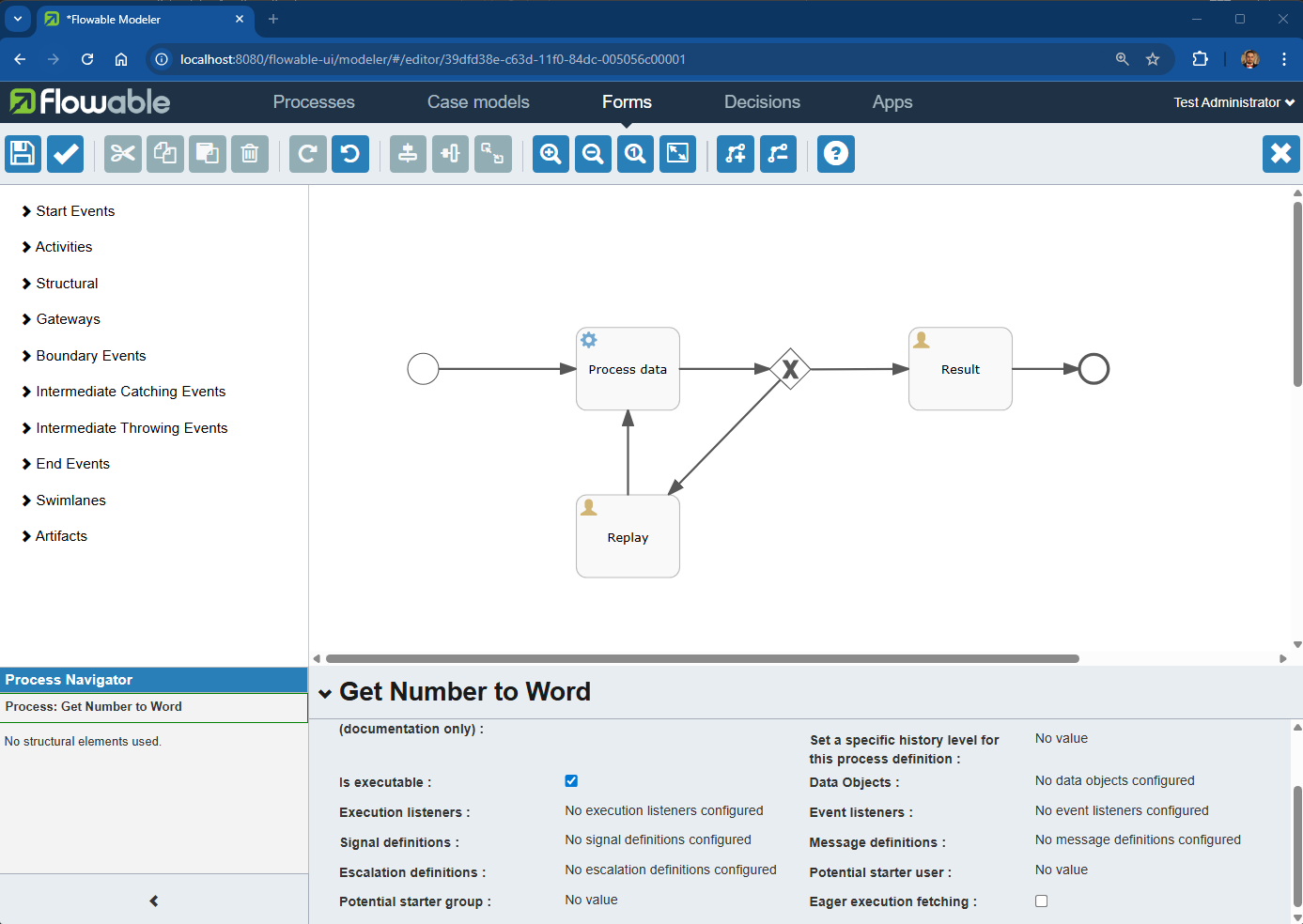
- Design a process model by drag and drop model elements, you should have something similar to this picture:
- On the start event, specify the following properties:
- Initiator: initiator
- Form reference→New form, with Form name: Initial number, and Form key: initial_number, then click on Create form.
- Design the form by drag and drop the component, by add new Text, then on click on edit icon after hover on, and update the Label: Input, then click Close.
- Click on the Save icon, then Save and close editor.
- On the Process data activity, specify the property Class: org.flowable.MySOAPDelegate
- On the Result activity, specify the following properties:
- Assignments→Assignment: Assigned to process initiator
- Form reference→New form, with Form name: Output result, and Form key: output_result, then click on Create form.
- Add Text, then change the label: Output, check Override id?, then id: input.
- On the Reply activity, specify the following properties:
- Assignments→Assignment: Assigned to process initiator
- Form reference then select the initial_number form, then click on Save.
- On the exclusive gateway, make sure that the property Exclusive is checked.
- On the sequence flow from the exclusive gateway to Result, specify the property Flow condition: ${input != 'Invalid Number'}
- On the sequence flow from the exclusive gateway to Retry, specify the property Flow condition: ${input == 'Invalid Number'}
- Click on Save the model icon, then click on Save and close editor.
- In Apps→Create App (or select the exiting one then click on App Editor):
- App definition name:Service connection
- App definition key:service_connection
- Then Create new app definition
- Clik on Edit included models, select your Displaying Upper Case process model, then go to Save and check published, and finally Save and close editor.

Executing a process model
- Go to Service connection→Processes→Start a process, select your newly created process model.
- Select Get Number to word.
- Enter a number in the Input (for example, 78), then click on Start process.
- Go to Processes→Inbox to observe the status of your executing process. The current task should be Result if you entered 78.
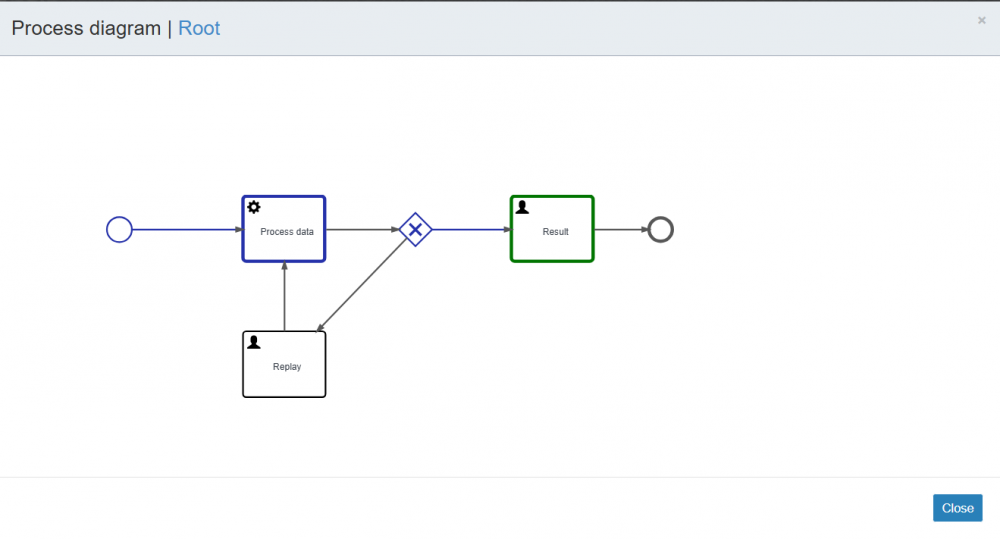
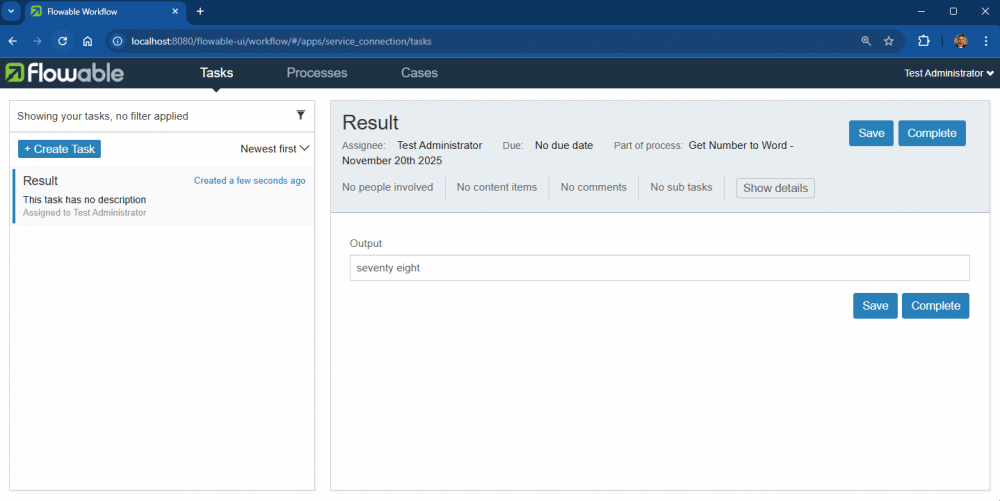
- Select Tasks→Inbox to see the result. It should be seventy eight if you entered 78 as input. Then click the Complete task button.
- Try to start the process again with an invalid number (for example, abc). Observe the status of your executing process. The current task should be Retry
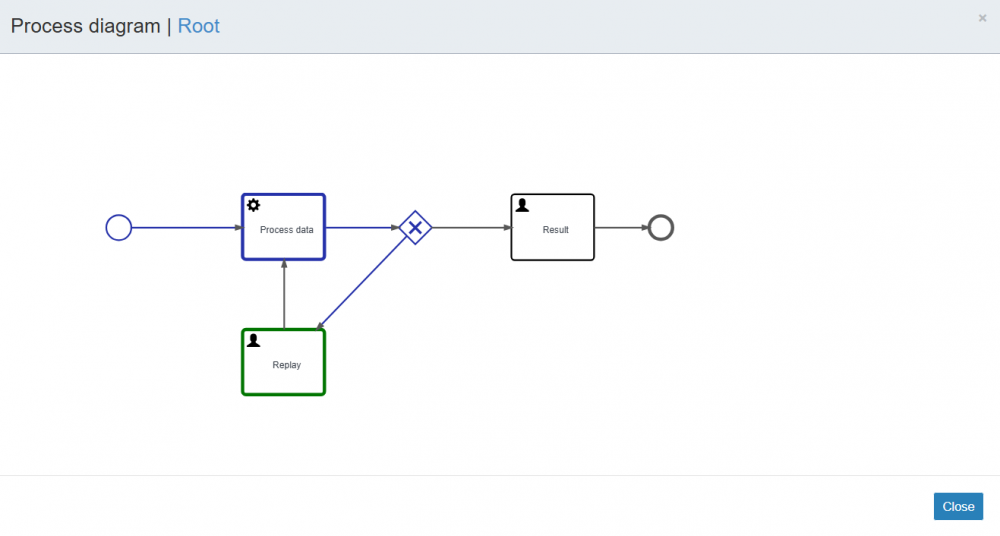
- Select Tasks→Inbox to reenter the input number. Enter an input then click the Complete task. If you entered an invalid input again, you will need to reenter it until it's valid.


Exercices
- Can you invoke the sayHello operation from WS_HelloWorld service from first web service tutorial
- Create a process model with a java service task to access your REST resource. Please do these steps before designing your process model:
- Suppose that we have already done the tutorial about Getting a target resource based on the client request. Open the class UserResource.java file. Modify the code as following:
package forthREST;

import org.restlet.resource.Get;
import org.restlet.resource.ServerResource;

public class UserResource extends ServerResource {
	@Get
	public String toString() {
		String uid = (String) getRequestAttributes().get("uid");
		if (uid.equals("123")){
			return "<users>" +
					"<user>" +
					"<id>"+uid+"</id>" +
					"<name>John</name>" +
					"</user>" +
					"</users>";
		}
		return "No information found.";

	}
}
- Run the modified REST service by right clicking on the RESTDistributor.java file, select Run As → Java Application.
- Open http://localhost:8182/users/123 by your web browser. You should get the following:
<users><user><id>123</id><name>John</name></user></users>
- Create a new Maven Project for an external Java class to access your REST resource, build it as a jar file and copy it to TOMCAT_HOME\webapps\flowable-ui\WEB-INF\lib.
- Restart your tomcat.