 search
Table of Contents
Java service task with Flowable workflow
Flowable provides the Java service task that allows to invoke an external Java class. And here, we will see how to do it. You shoud practice the previous tutorial to be clear with the process model design before working on this.
Create an external Java class as a jar file
- In Eclipse, create a new Maven Project.
- Check Create a simple project→Next
- Add Group Id and Artifact Id: org.flowable → Finish
- In your project, edit the file pom.xml by adding:
    <dependencies>
      <dependency>
        <groupId>org.flowable</groupId>
        <artifactId>flowable-engine</artifactId>
        <version>6.7.2</version>
      </dependency>
    </dependencies>
- Create a package org.flowable.
- In the package org.flowable, create a class MyJavaDelegate with the following code:
package org.flowable;

import org.flowable.engine.delegate.DelegateExecution;
import org.flowable.engine.delegate.JavaDelegate;

public class MyJavaDelegate implements JavaDelegate {

	public void execute(DelegateExecution execution) {
		String var = (String) execution.getVariable("input");
		var = var.toUpperCase();
		execution.setVariable("input", var);
	}
}
- Right click on your project and select Run As→Maven Install to build a jar file.
- Copy a jar file in the folder target to TOMCAT_HOME\webapps\flowable-ui\WEB-INF\lib
- Restart your tomcat.
Design the "Displaying Upper Case" process model
- In Activiti, login as admin “admin/test” with Modeler App→Processes→Create Process.
- Enter new model Model name: Displaying Upper Case, and Model key:uppercase. Click Create new model.
- Design a process model by drag and drop model elements, you should have something similar to this picture:
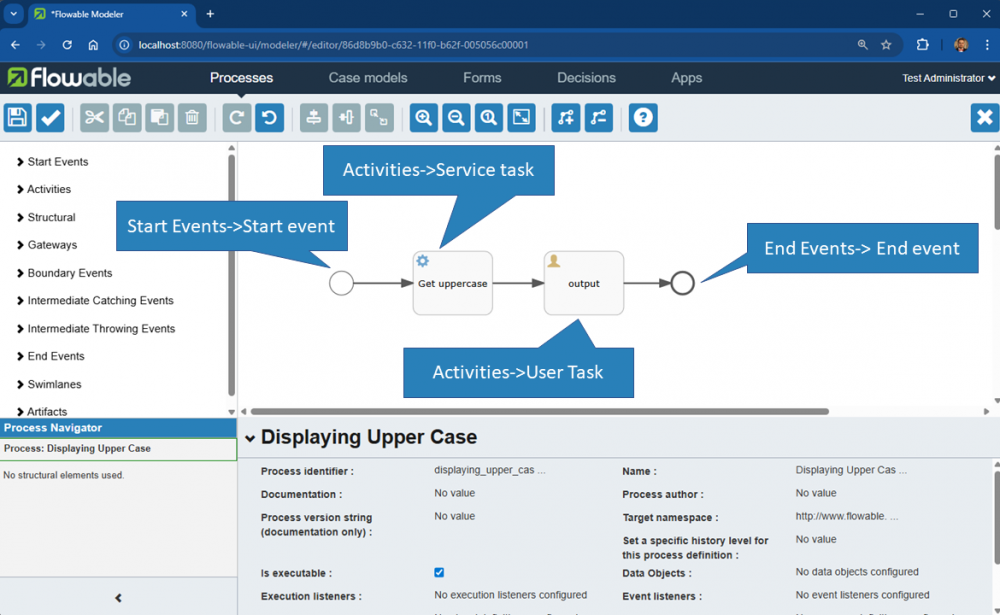
- On the start event, specify the following properties:
- Initiator: initiator
- Form reference→New form, with Form name: Initiate Upper Case, and Form key: initiate_upper_case, then click on Create form.
- Design the form by drag and drop the component, by add new Text, then on click on edit icon after hover on, and update the Label: Input, then click Close.
- Click on the Save icon, then Save and close editor.
- On the Get uppercase activity, specify the property Class: org.flowable.MyJavaDelegate
- On the output activity, specify the following properties:
- Assignments→Assignment: Assigned to process initiator
- Form reference→New form, with Form name: Output Upper Case, and Form key: output_upper_case, then click on Create form.
- Add Text, then change the label: Output, check Override id?, then id: input.
- Click on Save the model icon, then click on Save and close editor.
- In Apps→Create App:
- App definition name:Service connection
- App definition key:service_connection
- Then Create new app definition
- Clik on Edit included models, select your Displaying Upper Case process model, then go to Save and check published, and finally Save and close editor.

Executing a process model
- Go to Service connection→Processes→Start a process, select your newly created process model.
- Select Displaying upper Case.
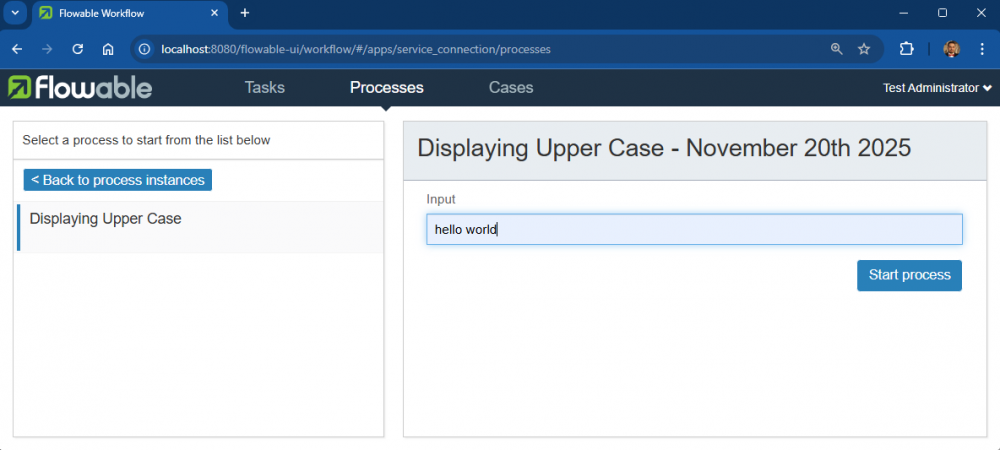
- Enter some text in the Input, then click on Start process.
- Go to Processes→Inbox and select you instance, then click on Show diagram to see the status of your executing process.
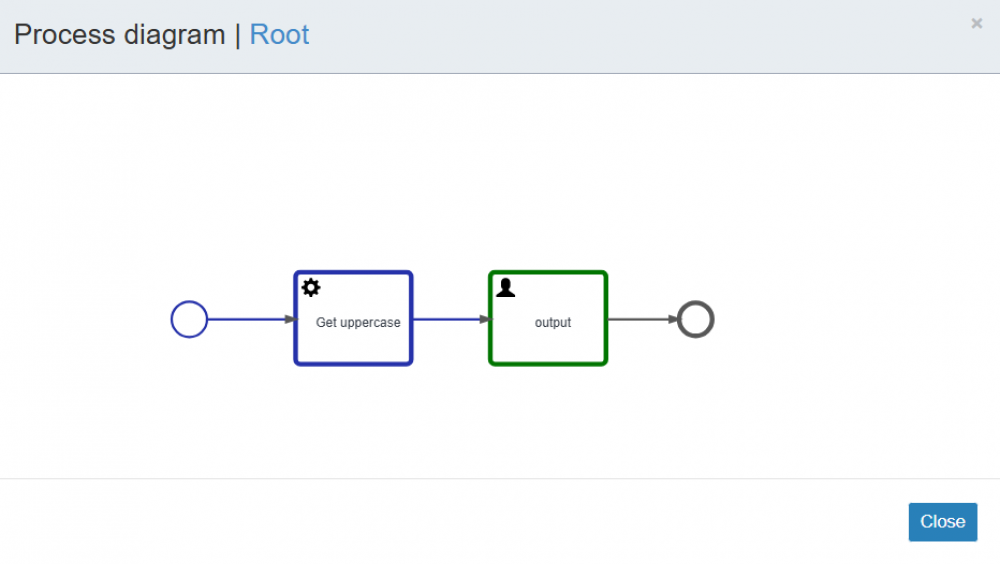
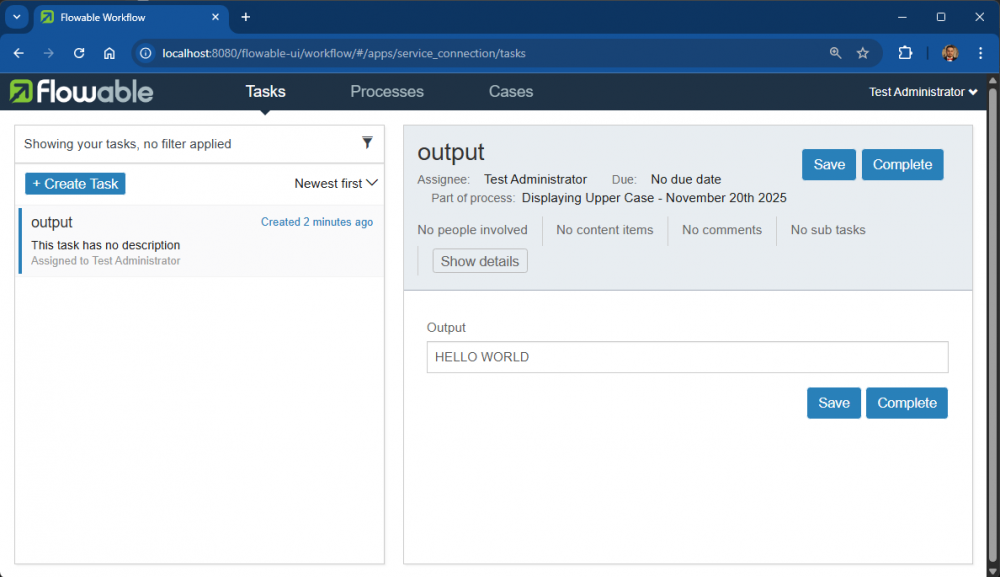
As you can see, the service task Get uppercase has automatically executed and invoked an external java class MyJavaDelegate. Now the current task is output which needed to be handled by you. - Select Tasks→Inbox to see the output, then click on Complete button to end this process.